
Clients
Everyone you bill, what each one owes, their account statement, and how quickly they pay.
#The client list
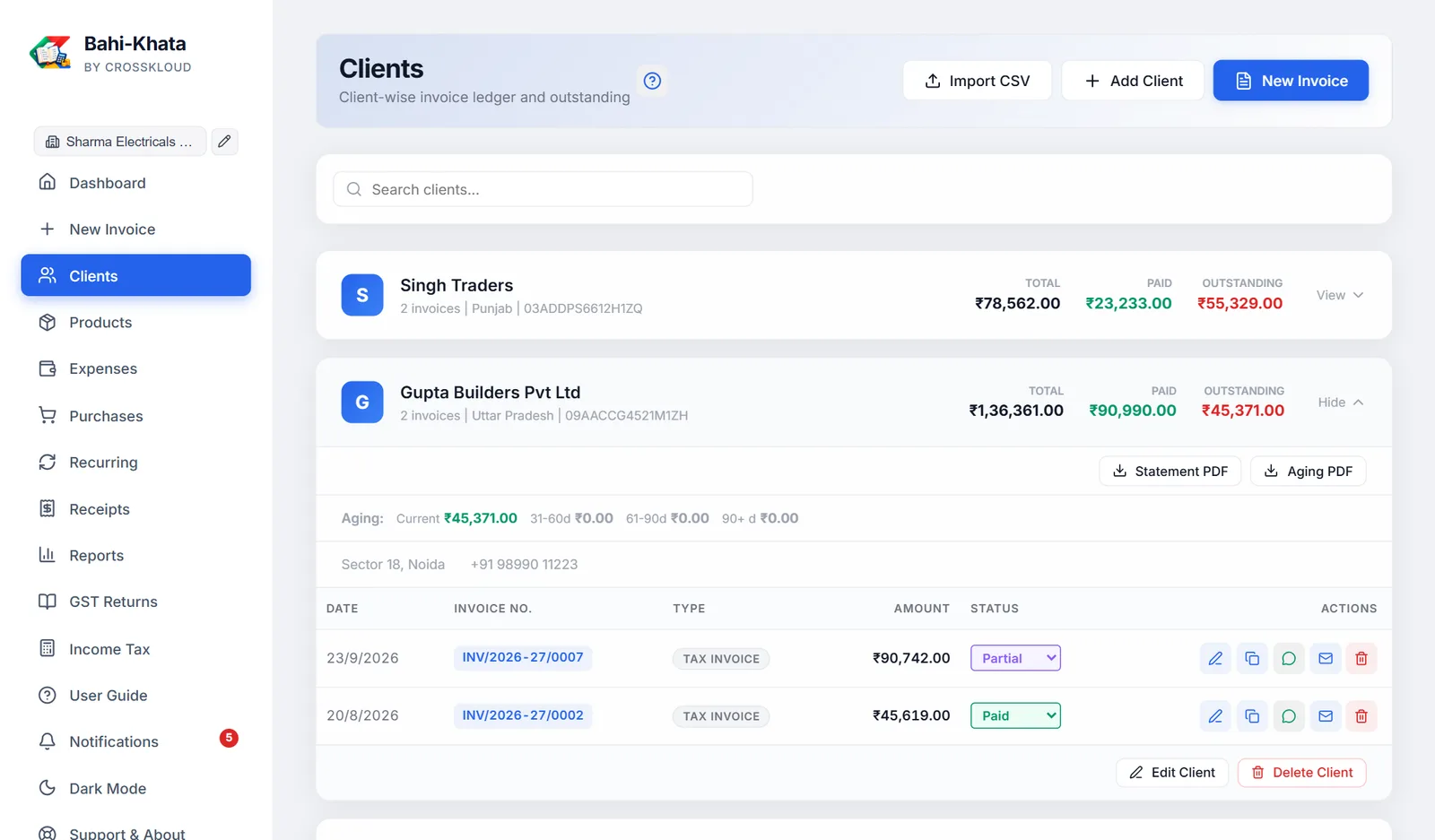
Every client you have saved, and every name you have invoiced, appears as a card, with the ones who owe the most at the top. Search clients… finds them by name.
Each card shows the number of invoices, the state and GSTIN, and three figures: Total, Paid, and Outstanding in red, or Overpaid in blue if they have paid too much. Only real sales count: credit notes are subtracted, and quotations, estimates, challans and cancelled invoices are left out. Click a card to open it.
Your client list is shared by all your businesses, since the same customer may buy from each.
#Adding and editing a client
Add Client opens the form. The same form opens from the invoice screen.
| Field | What to know |
|---|---|
| Client / Business Name | Required |
| Address, City, PIN Code | The postal label changes with the country |
| Country | Starts as your own country. Changing it clears the state. |
| State | A list for India, a text box for countries without one |
| GSTIN | Checked when you leave the box, as on the invoice: the state is filled in if blank, and typos and a mismatched state are pointed out. See What the GSTIN check tells you. |
| Email, Phone | The phone number is used for WhatsApp |
| SEZ unit / Developer | India only. Charges IGST whatever their state, under section 16 of the IGST Act. |
Under Print preferences (optional), a client can have a preferred paper size, a preferred currency and Auto-print on save. They are applied whenever you pick this client on a new invoice.
#A client's account
Open a card to see all their invoices, newest first, with date, number, type, amount and status. Each row has buttons to edit, duplicate, share on WhatsApp, email or delete it. The status can be changed from the row too; choosing Paid records a payment for the balance, as on the Dashboard.
At the bottom: Edit Client and Delete Client, or, for a name that was never saved, Save as Client. Deleting a client only removes them from your saved list; their invoices stay.
Deleting an invoice here moves it to the Trash for 30 days. It can be restored from Settings, Trash bin. For an invoice already given to a client, cancel it instead, so its number stays in your records.
#Ageing: who is slow to pay
When a client owes money, a strip shows it split by how late it is: Current (up to 30 days), 31-60 days, 61-90 days and 90+ days. Lateness is counted from the due date, or from the invoice date when there is none.
#Statement and ageing PDFs
- Statement PDF: their whole account, from your business to theirs. It has a summary of invoices, total billed, paid and outstanding, then every invoice, credit note and payment with a running balance marked Dr (they owe you) or Cr (you owe them), and a closing balance. Send it when a bill is disputed.
- Aging PDF: only what is outstanding, invoice by invoice, with how many days old each is, and totals for each group. Amounts over 60 days are in red. Useful for collection calls.
#Importing clients from a spreadsheet
Import CSV adds clients from a CSV file, one per row. Save your spreadsheet as CSV first. The first row must name the columns:
| Column heading | Holds |
|---|---|
name (or client, client name) | Required. Rows without a name are skipped. |
address, state, gstin, email, phone | Optional |
name,address,state,gstin,email,phone
Sharma Traders,12 MG Road,Punjab,03AAAAA0000A1Z5,[email protected],9876543210
Clients you already have (same name) are skipped, so importing the same file twice is safe. Other columns, such as city or PIN, are ignored.