
Recurring invoices
Invoices that repeat on a schedule, such as a monthly retainer, rent or an annual maintenance contract.
#Two ways to set one up
- From an invoice (recommended): make the first invoice as usual, and under Customize tick Make this a recurring invoice. This keeps everything on the invoice, including taxes, terms and options, and lets you set Every N and an end date or number of invoices.
- From the Recurring screen: New Template with a client, frequency, next date, when to stop, type and simple item lines.
#The New Template form
| Quick Select Client | Fills in the client's name, GSTIN, state and address |
| Client Name | Required |
| Client GSTIN | Optional |
| Frequency | Weekly, Monthly, Quarterly or Yearly |
| Every | 1 to 12. Monthly with 3 means every three months. |
| Next Due Date | The 1st of next month, to start |
| Stop | Never (until I stop it), On a specific date, or After N invoices |
| Invoice Type | Any of the six types |
| Line Items | Description, Qty, Rate and GST%. At least one item with a rate is needed. |
#The template list
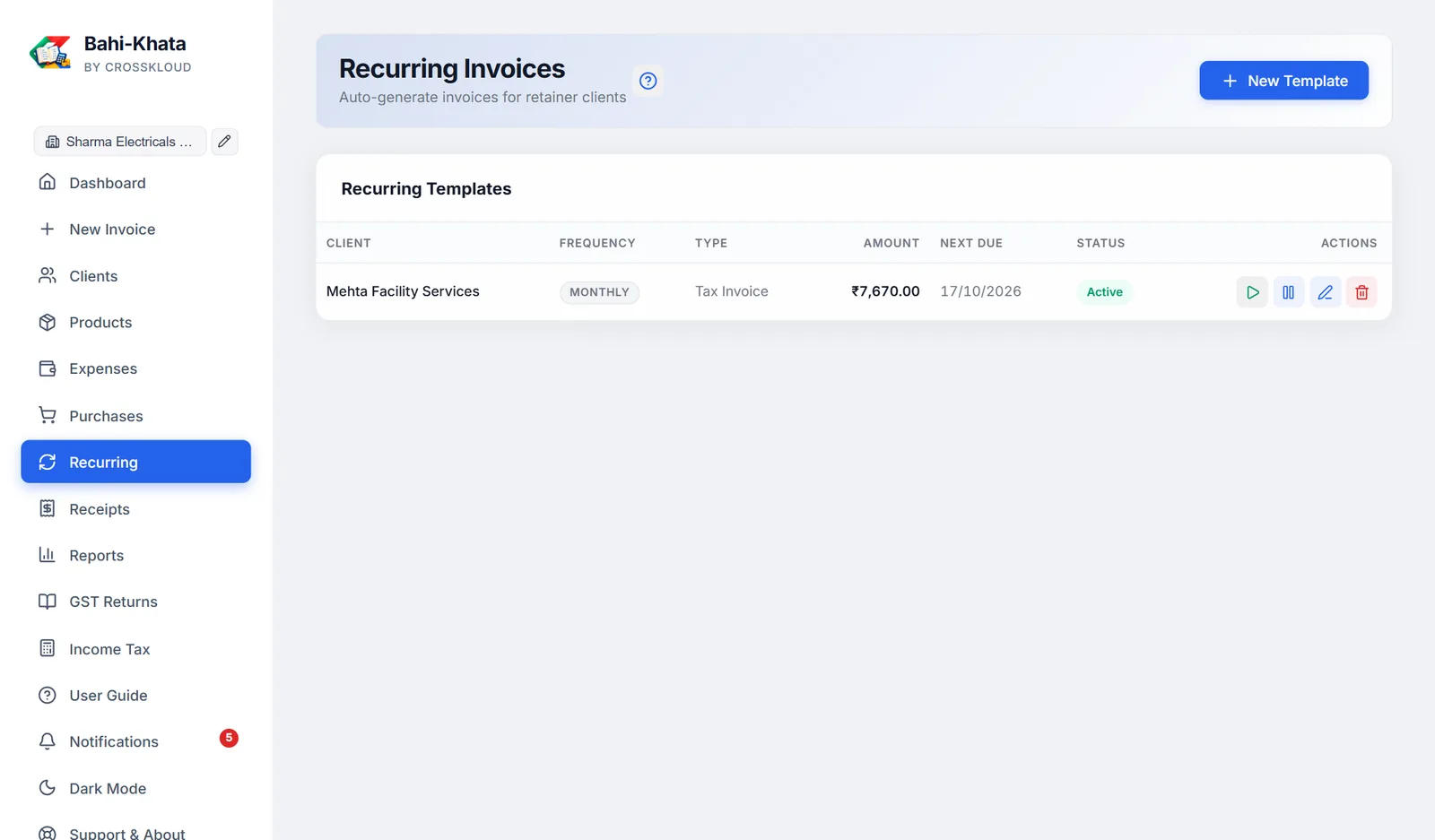
Each template shows the client, how often (such as "Every 3 months"), type, amount, next due date and whether it is Active or Paused. Its buttons: ▶ Generate Now, Pause or Activate, Edit, and Delete. Editing keeps everything the form does not show, such as terms and options from the original invoice. Deleting a template stops future invoices; invoices already made stay.
When templates are due, a banner lists them, with a button for each to create its invoice now.
#How invoices are created automatically
A few seconds after the app starts, and then once a day while it is running, every active template whose date has come creates its invoice, with a fresh number and that day's date. Its next date then moves on by the schedule, and it stops at its end condition.
The notification bell tells you how many were created. They appear on the Dashboard, ready to check and send.
If the app was closed for a while, one invoice is created each time it catches up, so a missed month is not skipped.
#Generate Now
▶ creates the invoice straight away, even if the template is paused or not yet due, exactly as the automatic run would: same tax, a fresh number, today's date. Its next date moves on by the schedule and it counts towards "After N invoices". Once a template has reached its end, it says so instead. Open the new invoice from the Dashboard to check it before sending.