
Customize: what prints and how
The Customize panel on the invoice screen: title, currency, style, colour, every show-or-hide option, paper size and thermal settings, and exactly what each part of the printed invoice shows.
#Your choices become the default
Open the panel with Customize in the invoice toolbar. Whatever you change here is used for this invoice and remembered for your next new invoice, including the title, reverse charge, TDS and TCS. If a setting was only meant for one invoice, change it back afterwards.
A saved invoice keeps the options it was saved with.
These are per-invoice settings. The app-wide look, such as fonts, watermarks, copies and translated labels, is in Print and PDF settings.
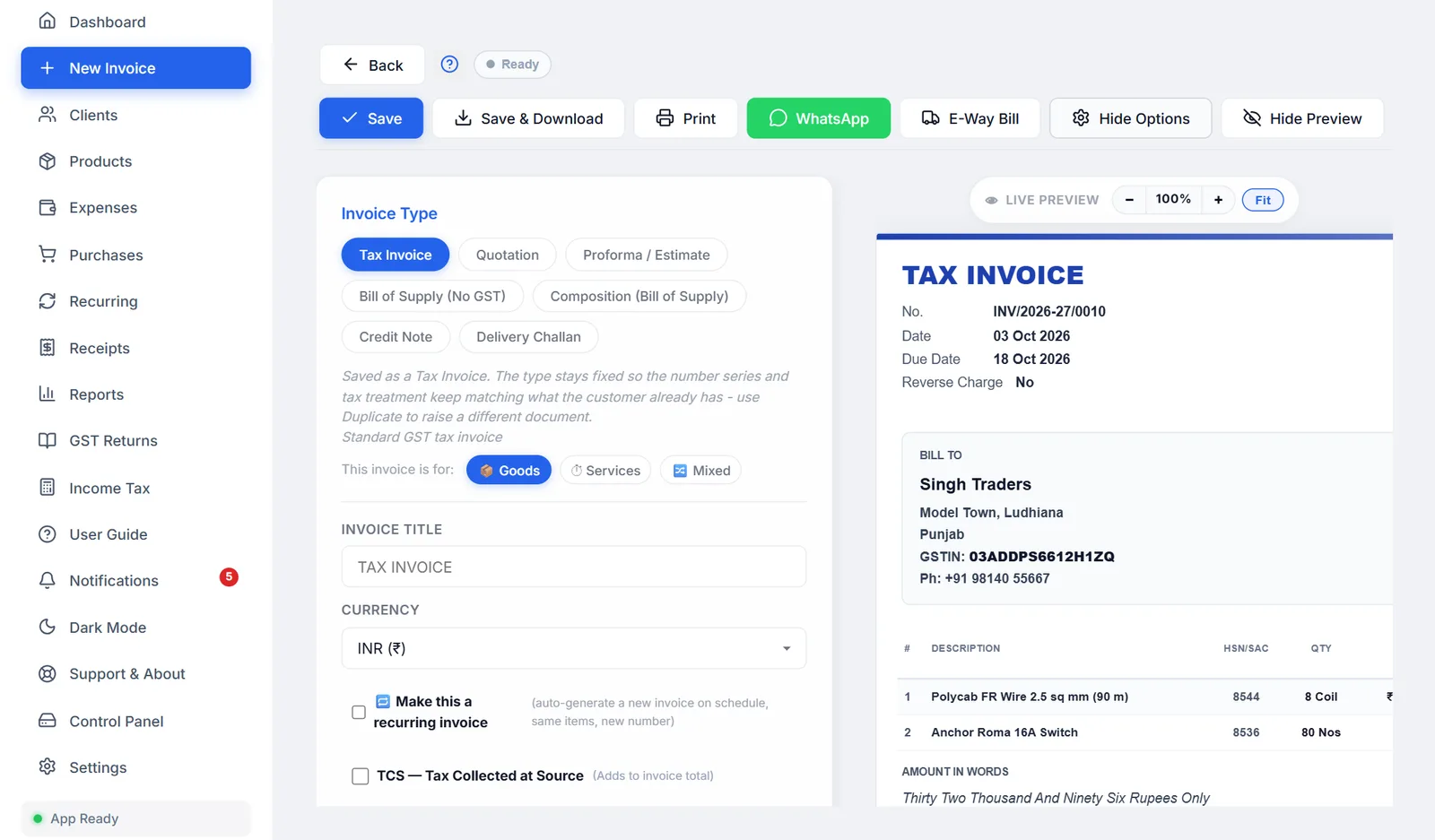
#Title, currency and exchange rate
| Invoice Title | Replaces the printed title, such as TAX INVOICE. Leave it blank to use the type's own title. Thermal receipts ignore it. |
| Currency | Rupees to start. See Billing in another currency. |
| Exchange Rate | Only for currencies other than rupees. Kept with the invoice. |
#Make this a recurring invoice
Tick 🔁 Make this a recurring invoice to have the app create this invoice again on a schedule, with the same client, items and amounts, a new number and that day's date.
| Frequency | Weekly, Monthly (the default), Quarterly or Yearly |
| Every N | 1 to 12. Monthly with 3 means every three months. |
| Next invoice date | One month after this invoice, to start |
| End condition | Never (until I stop it), On a specific date, or After N invoices, for example 12 for a one-year monthly contract |
The schedule is saved when you save the invoice, and can be paused or changed from Recurring.
#TCS, TDS and the payment account
- TCS and TDS: see TDS and TCS.
- Payment account on this invoice: if you have more than one bank account, choose which one prints. New invoices start with your ⭐ default account. The bank details and UPI QR are copied onto the invoice when you save it, so changing the account in Settings later never changes an invoice you have already sent.
#PDF style and accent colour
| Style | Look |
|---|---|
| Classic | Clean, with a coloured bar across the top. The default. |
| Modern | A solid colour block behind your business name, with the logo in white. |
| Minimal | Simple, with no borders. |
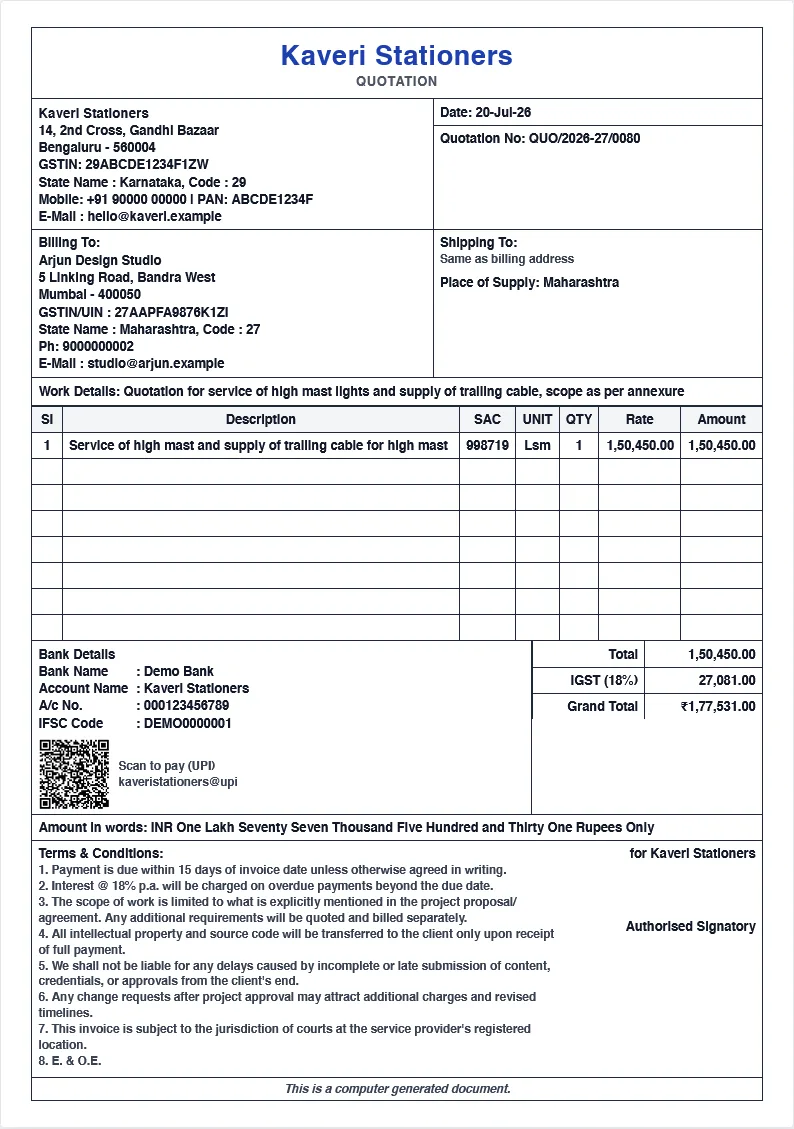
| Boxed grid | Every section in ruled boxes: your name large at the top, seller and document details side by side, Billing To and Shipping To, a Work Details line, and an item table filled with empty rows to a fixed height, like a printed quotation pad. |
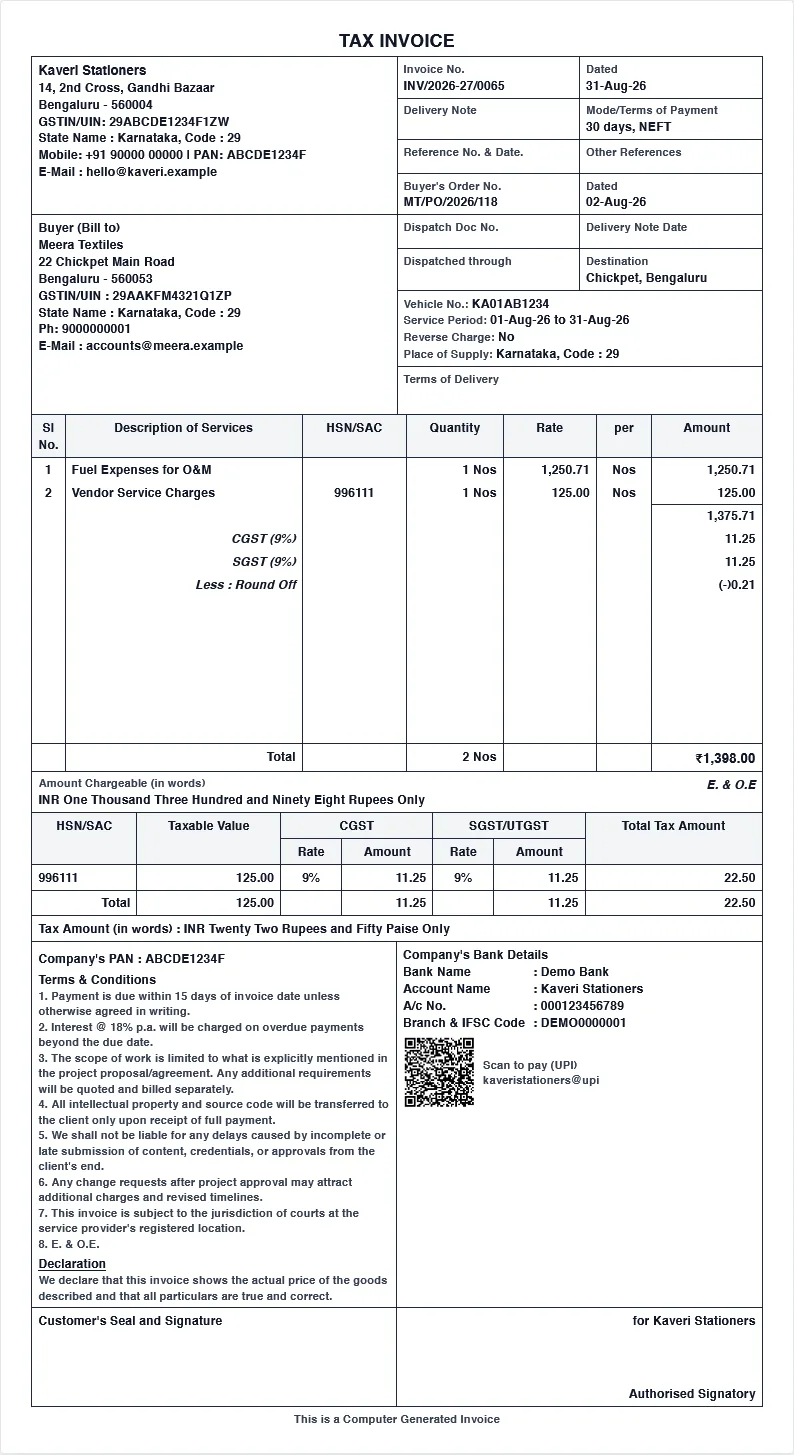
| Tally style | The Tally layout: reference and dispatch boxes beside your details, state names with their codes, taxes inside the item table, amount in words with E. & O.E, an HSN/SAC tax summary, tax amount in words, your PAN, a declaration, and a "Customer's Seal and Signature" box. |
Accent Color: Auto gives each type its own colour, such as blue for tax invoices, purple for proformas, teal for bills of supply and red for credit notes. You can also choose one of eight fixed colours: blue, purple, teal, red, orange, green, sky or dark.
#Showing and hiding parts of the invoice
Each tick box shows or hides one part of the printed invoice. Hiding something never deletes it.
| Group | Options | Off to start |
|---|---|---|
| Header & branding | Logo, business name, address, phone, email, state, Tax ID (GSTIN) | |
| Client / Bill-to | Client address, phone, email, Place of Supply | |
| Invoice meta | Invoice number, invoice date, due date | |
| Items table | HSN/SAC column, Qty column, unit next to the quantity, Rate column, Discount column, Tax % column, GST Cess % column | GST Cess |
| Totals | Subtotal row, amount in words, round-off line, HSN/SAC tax summary table, tax amount in words | The HSN summary and tax in words are on only in Tally style. Round-off follows Print & PDF (on for new installs). |
| Compliance flags | Reverse Charge applies | Reverse Charge |
| Footer | Bank details, "Pay via" account label, UPI QR, signature block, "Authorized Signatory" caption, Terms & Conditions, Notes, system-generated note, Declaration, "Customer's Seal and Signature" box | "Pay via" label, system-generated note. Declaration and the seal box are on only in Tally style. |
A few options do more than show or hide:
- Tax % column off means no GST is charged at all, and the tax rows disappear from the totals. Bill of Supply and Delivery Challan turn it off for you.
- Round-off line rounds the grand total to the nearest rupee, and shows the difference. The default for new invoices is set in Print & PDF.
- Business state also hides the client's state, and Tax ID also hides the client's GSTIN.
- Bank details also hides your PAN, which prints in the bank block.
- GST Cess % column adds a Cess box to each row of the form. The printed invoice shows cess as one line in the totals.
- Hiding HSN, Discount, Place of Supply, state or Tax ID also hides the matching box in the form.
When Declaration is on, a box appears to change its wording. It starts as the standard "We declare that this invoice shows the actual price of the goods described and that all particulars are true and correct."
Hide all turns off everything in the header, client, invoice, items, totals and footer groups at once. Reset to default puts every option back as it was on a fresh install, including currency, paper size, recurring, TDS, TCS and reverse charge.
#The "system-generated invoice" note
In the Footer group, Note: system-generated invoice adds this line below the terms:
Note: This is a system-generated invoice. No signature or stamp is required.
It is off unless you turn it on. If you use it, consider turning the signature block off too, so the invoice does not contradict itself.
#Paper size
| Option | Size |
|---|---|
| A4 Portrait (default) | 210 × 297 mm |
| A4 Landscape | 297 × 210 mm |
| A5 Portrait (compact) | 148 × 210 mm |
| A5 Landscape (2 per A4 sheet) | 210 × 148 mm |
| US Letter | 216 × 279 mm |
| US Legal | 216 × 356 mm |
| B5 | 176 × 250 mm |
| 80mm Thermal (POS receipt) | 72 mm printable |
| 76mm Thermal (kitchen printer) | 68 mm printable |
| 58mm Thermal (compact / mobile) | 48 mm printable |
| 112mm Thermal (wide receipt) | 104 mm printable |
| Custom size | Width 30 to 500 mm, height 50 to 1200 mm |
For a custom size, enter the printer's printable width, not the roll width. Anything under 100 mm wide prints as a receipt. The quick buttons 40mm, 76mm, 90mm and 110mm fill in common rolls.
A client can have their own preferred paper size, which is used when you pick them on a new invoice.
#Thermal printer settings
When a thermal size is chosen, three more settings appear:
| Font size | Small, Medium (the default) or Large |
| Compact mode | Tighter item rows. Off to start. |
| Cut mark at bottom | Prints a CUT HERE line, for printers without an automatic cutter. On to start. |
More receipt settings are in Print Settings. See also Thermal receipt printing.
#What prints: the header
- Your side: logo, business name, address with city and PIN, state, GSTIN, email and phone. Each can be hidden.
- The invoice's side: the title; for a proforma, "This is not a tax invoice"; for a credit note, "Against Invoice" and the original number; then the number, date and due date; and, for tax invoices and credit notes in India, Reverse Charge Yes or No.
With a letterhead set in Print Settings, the header is replaced by your letterhead.
#What prints: Bill To, Ship To and Place of Supply
- BILL TO: the client's name, address, state, GSTIN, email and phone.
- SHIP TO: only when a different delivery address is entered.
- PLACE OF SUPPLY: the state, with Interstate (IGST) or Intrastate (CGST + SGST) beside it.
#What prints: the items table
Columns, left to right: #, Description (with its longer note underneath), HSN/SAC, Qty with the unit, Rate, Disc. (only when a line has a discount), the tax columns, and Amount.
- Within your state: CGST and SGST, each with its rate and amount.
- Another state: one IGST column.
- Outside India: one column with the local tax name, such as VAT.
Amount is the line's value after discount and before tax. The tax is in the columns beside it.
#What prints: the totals
On the left, the amount in words and a Scan to pay (UPI) QR code with your UPI ID and the amount. The QR only prints on rupee invoices, with a UPI ID set and a total above zero.
On the right, in order: Subtotal, Discount, CGST and SGST or IGST, GST Cess, TCS, Discount on total, Round-off, and Total Due. For a credit note, the last line reads Credit Amount. With TDS, Less: TDS and Net Receivable follow.
#Watermarks
- CANCELLED, in red, on a cancelled invoice.
- ESTIMATE, very faint, on a proforma.
- Your own watermark, copy labels such as ORIGINAL and DUPLICATE, REPRINT, page numbers and QR codes come from Print Settings, and only on sheet paper, not receipts.