
Dashboard
Your invoices at a glance: what you have sold, what you are owed, what is overdue, and every action you can take on an invoice.
#At the top
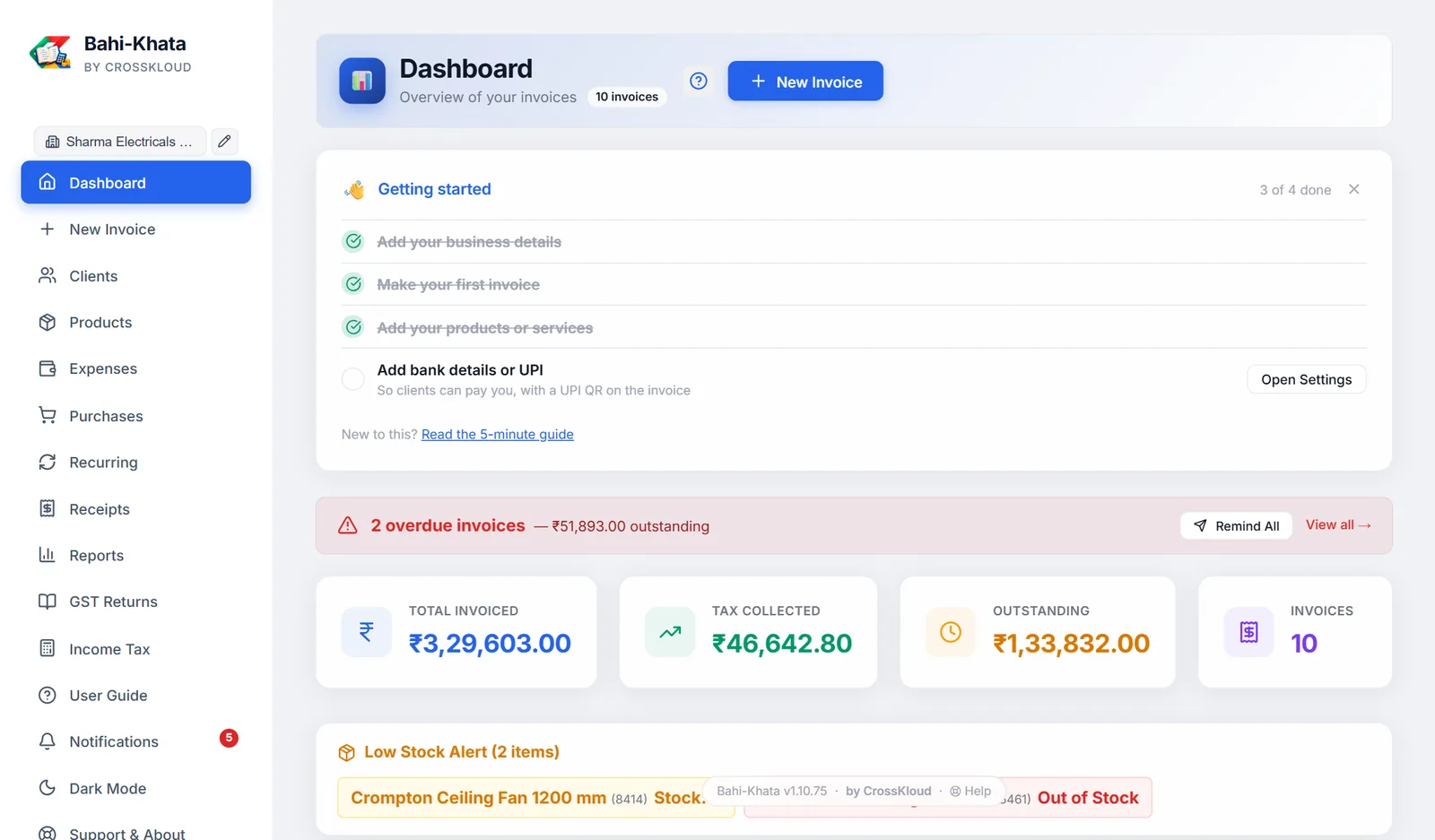
The count beside the title is every document for the business selected in the sidebar, including estimates, challans and cancelled invoices. New Invoice starts a blank invoice.
#The Getting started list
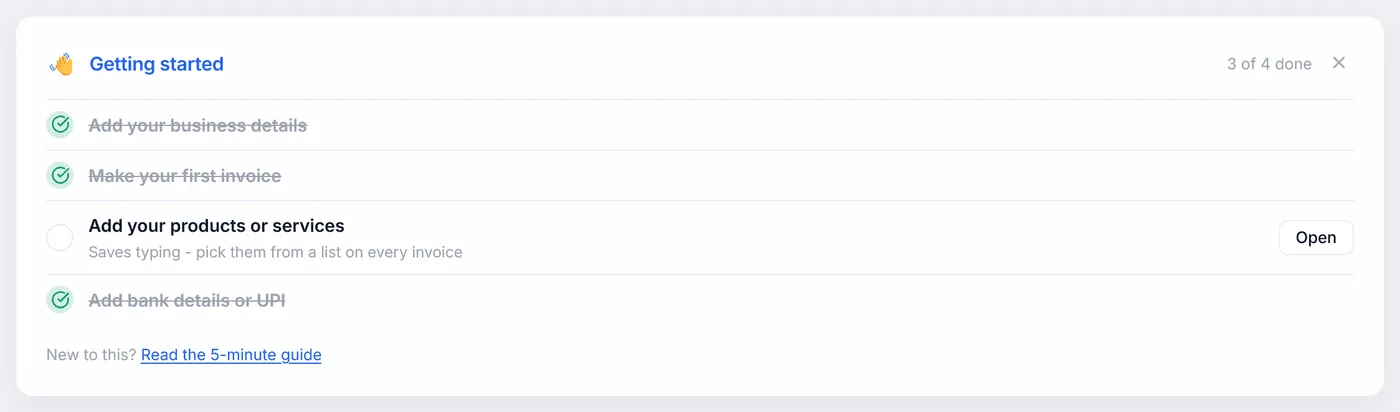
New installs show four steps. Each ticks itself off once you have really done it, and has a button that takes you there:
| Step | Done when | Button |
|---|---|---|
| Add your business details | A business name is saved | Open Settings |
| Make your first invoice | Any invoice exists | Start |
| Add your products or services | At least one product is saved | Open |
| Add bank details or UPI | A bank account or UPI ID is saved | Open Settings |
It disappears when all four are done, or when you close it with ✕. Read the 5-minute guide opens this documentation in your browser.
#Overdue invoices and reminders
When any invoice is overdue, a red banner shows how many and how much is outstanding. Click the banner to show only overdue invoices.
Remind All lists each overdue invoice with the client, amount and phone number. Remind opens WhatsApp with a polite reminder already written, such as "Invoice INV/0012 for ₹11,800 was due on 5 Sep 2026. Kindly arrange the payment…".
#The four totals
| Total Invoiced | The total of your sales, including GST |
| Tax Collected | The GST on those sales |
| Outstanding | What clients still owe on unpaid and part-paid invoices |
| Invoices | How many sales documents there are |
They cover only the selected business and only real sales. Tax invoices, bills of supply and composition bills count. Credit notes are subtracted. Proforma estimates, delivery challans and cancelled invoices are left out. Foreign-currency sales are shown on their own line, never added to rupees.
#Low stock
If alerts are on in Settings, products at or below your threshold are listed, with Out of Stock in red or the number left in amber. Click one to open Products.
#Finding an invoice
| Search | By client name or invoice number |
| Financial year | All years, or one of the last five |
| Type | Any of the six document types |
| Status | Unpaid, Partial, Paid, Overdue or Cancelled |
| From / To | A range of invoice dates |
✕ clears all filters at once.
#Choosing the columns
Columns lets you show or hide: Date, Invoice #, Type, Client, Amount, Currency, Status, Due date, Print count and Actions. Currency, due date and print count are hidden to start. The Paid column is always shown. Your choice is remembered.
A yellow note icon next to a client means the invoice has a private note. Point at it to read it.
#Status
Each invoice is Unpaid, Partial, Paid, Overdue or Cancelled. Recording payments sets it for you. Each time the Dashboard opens, unpaid and part-paid invoices past their due date become Overdue, and the row shows how many days late they are.
You can also change it from the dropdown on the row. Choosing Paid records a payment for the rest of the balance, so your payment history stays complete.
#Recording a payment
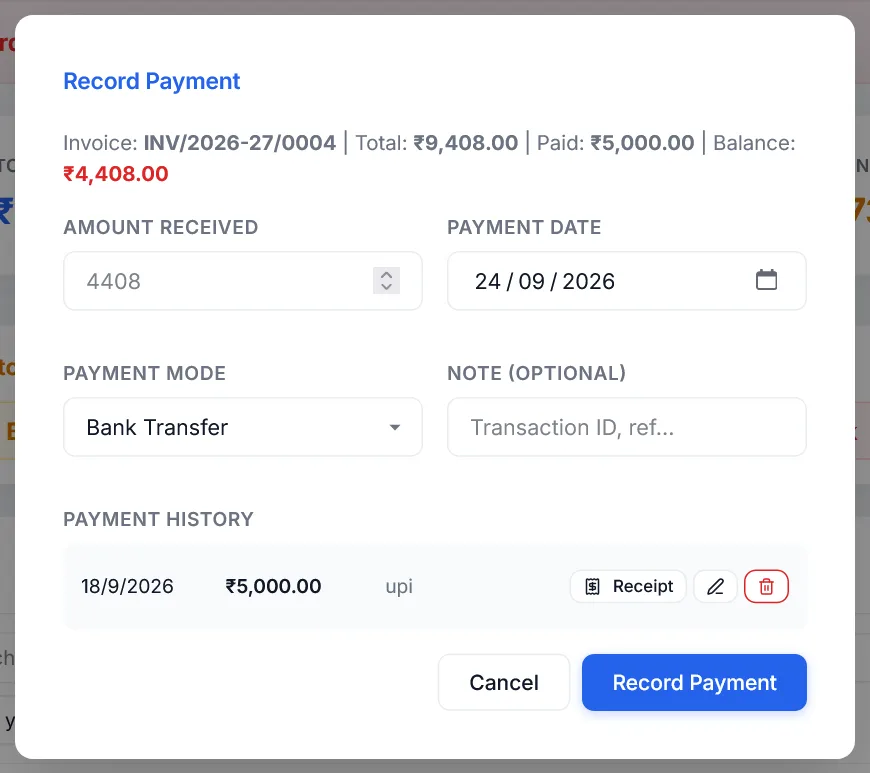
- Open itClick the ₹ Payment button on the invoice. The top line shows the total, what is paid, and the balance.
- Fill it inEnter Amount Received, the Payment Date (today to start), the Payment Mode (Bank Transfer, UPI, Cash, Cheque, Card or Other), and a note such as the transaction ID.
- Record itClick Record Payment. The status becomes Partial or Paid, and a printable receipt opens.
A cancelled invoice cannot take a payment; change its status back first.
If the amount is more than the balance, you are asked whether to record it as an overpayment. The extra is kept as the client's credit, to use on their next invoice.
Under Payment History, each payment has Receipt to reprint it, a pencil to edit it, and a bin to delete it. The status is worked out again after any change.
#The payment receipt
It shows your business details, PAYMENT RECEIPT, the receipt number, date, invoice, payment mode and note, "Received with thanks from" the client, the amount (in words for rupees), the invoice total, total paid and balance, and signature lines. Print Receipt prints it on A5.
#What you can do with an invoice
| Edit | Opens it on the invoice screen. |
| Duplicate | A new invoice with the same client and items, a new number and today's date. |
| Convert to Tax Invoice | Quotations, proformas and delivery challans only. See Turning a quote into an invoice. |
| ₹ Payment | Record a payment, as above. |
| On a phone, attaches the PDF through your phone's share menu. On a computer, WhatsApp does not let websites attach files, so it sends the details as text; download the PDF and drop it into the chat. | |
| Send reminder | Shown for unpaid, part-paid and overdue invoices. Opens WhatsApp with a reminder suited to the situation. |
| Opens your email program with the subject and a short message. Add the address and attach the PDF yourself. | |
| Cancel | See Cancelling an invoice. |
#Cancelling an invoice
Cancel asks first, then marks the invoice cancelled. It keeps its number, which GST requires, but no longer counts in totals, reports or GST returns, and any stock it used goes back.
To undo it, change the status on the row back to Unpaid, Paid or another status. The stock is taken out again. A cancelled invoice is never shown as overdue.
#Printing many invoices as one PDF
The Quick print buttons combine invoices from the list as it is currently filtered into one PDF, one invoice per page:
- All shown: every invoice in the list
- Unpaid: only those marked Unpaid, not part-paid or overdue
- Overdue and Paid
For more than five invoices, a message shows how far it has got. For more than 100, you are asked first.
#Ticking several invoices
Tick the box on each row, or the box in the header for every visible row. A bar appears with:
| Mark paid, Mark unpaid, Mark overdue | Change them all, after asking. Mark paid records a payment for each balance. |
| Export JSON | Saves the ticked invoices to a file, which can be imported as a backup. |
| Bulk PDF | Combines the ticked invoices into one PDF, useful for your CA or for filing. Cancel stops it part-way and keeps what is done. |
| Cancel invoices | Cancels the ticked invoices, after asking, and puts their stock back. Marking cancelled invoices as anything else brings them back and takes the stock out again. |
Ticks stay when you change the filters, so check the count before acting.