
Print and PDF settings
The app-wide defaults for how every invoice looks on paper and in a PDF: business-type presets, designs, thermal receipts, copies, watermarks, fonts, colours, languages and formats. Each invoice can still override the basics from its own Customize panel.
#How these settings save
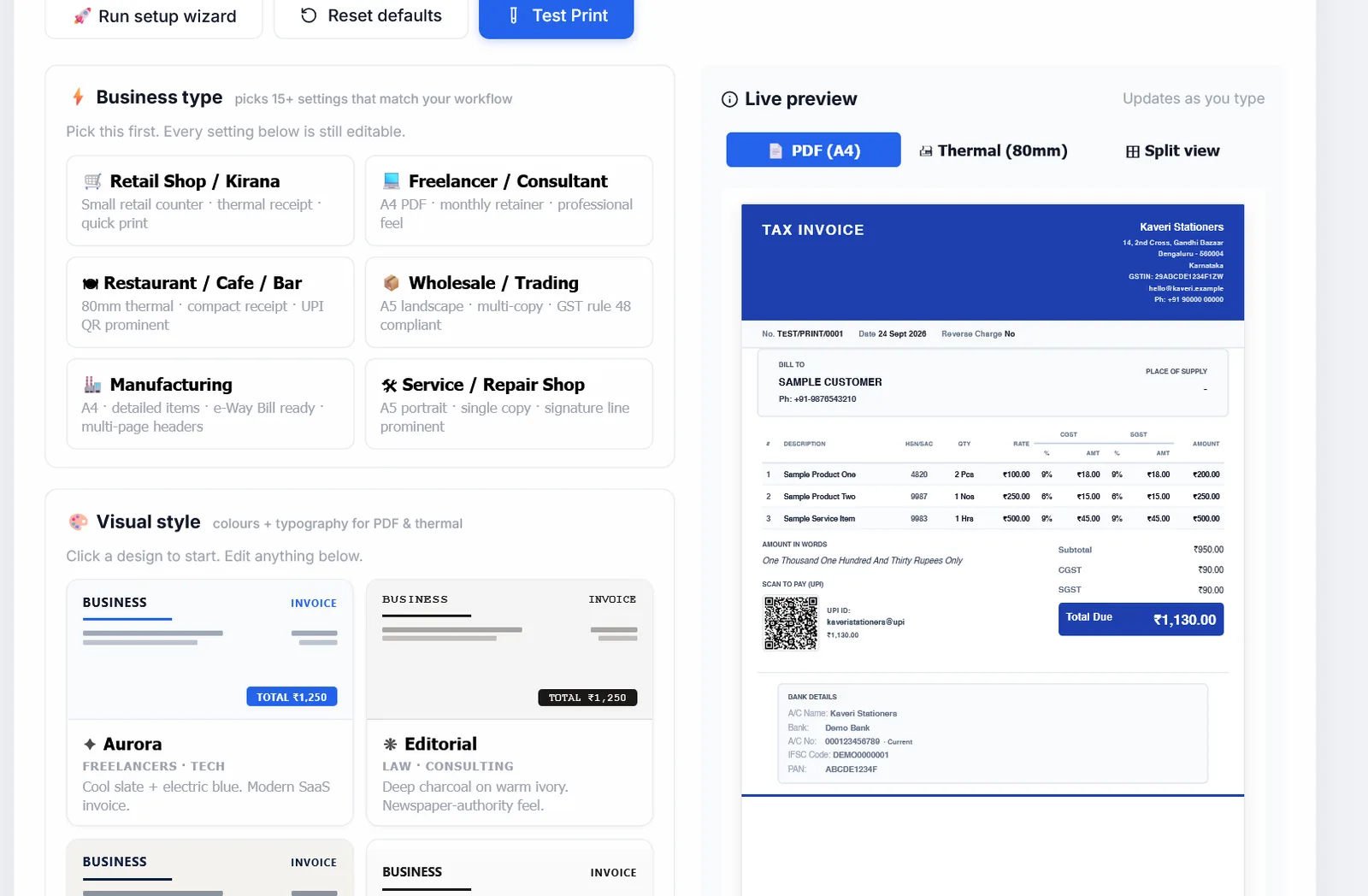
Open Settings and go to the Print & PDF section. There is no Save button: every change is kept the moment you make it, and the Live preview on the right updates as you type. The preview uses a sample invoice with your business name, so you can see the effect without touching a real invoice.
Three buttons sit at the top:
| Run setup wizard | Shows the first-run wizard again the next time the app is reloaded. |
| Reset defaults | Puts every print setting back to how it was on a fresh install, straight away and without asking. That includes your saved templates, number prefixes, signature image and letterhead. Save a template first if you might want your setup back. |
| Test Print | Sends a small 80 mm test print of the preview to your default printer. Use the Thermal (80mm) preview tab first; in Split view it reports that the preview is not ready. |
#Business type
Picking the kind of business you run sets 15 or so settings in one go, and hides options that do not apply to you. You are asked to confirm first, and every setting stays editable afterwards.
| Business type | Set up for | Main settings it applies |
|---|---|---|
| Retail Shop / Kirana | A counter with a thermal printer | Bold capitals, prints straight after saving, "Qty × Rate" lines, no HSN, "Thank you! Visit again!", cut mark and 2 feed lines |
| Freelancer / Consultant | Professional A4 PDFs | Minimalist design, HSN, amount in words, page numbers and header on long invoices |
| Restaurant / Cafe / Bar | 80 mm receipts with a big UPI QR | Bold, prints on save, no HSN or amount in words, large UPI QR, 3 feed lines, "Thanks for dining with us!" |
| Wholesale / Trading | GST copies of goods invoices | Classic design, three copies (ORIGINAL, DUPLICATE, TRIPLICATE), HSN, amount in words, darker print |
| Manufacturing | Detailed A4 invoices | Corporate design, HSN, amount in words, page numbers and header, invoice QR, three copies |
| Service / Repair Shop | Simple single-copy bills | Classic design, no HSN, amount in words, signature shown |
While a business type is chosen, options it does not need are hidden, and a note says so. Show all options in that note clears the business type so you can see everything.
#Visual style
Eight ready-made designs set the colours and type for both PDFs and thermal receipts in one click. Each card shows a small preview in its own colours; the one in use is marked ACTIVE.
| Design | Suits | Look |
|---|---|---|
| Aurora | Freelancers, tech | Cool slate with electric blue |
| Editorial | Law, consulting | Charcoal on warm ivory, capitals |
| Executive | Enterprise, B2B | Deep navy with soft champagne |
| Whisper | Designers, studios | Off-white, one hairline, nothing else |
| Sunset | Retail, cafes, salons | Warm terracotta on cream, with a tagline |
| Monoline | Developers, agencies | Monospace, dense rows, 90% size |
| Nordic | SaaS, studios | Teal on frosted white |
| Bold Retail | Fashion, sports | Black with a red accent, capitals |
Unlike business types, a design is applied without asking. A few designs also change one or two other settings (Monoline shrinks the text to 90% and hides the "Qty × Rate" line; Sunset turns the tagline on), and those stay as they are when you pick another design.
#Thermal receipts
These four groups only affect 58 mm and 80 mm receipt printers. They are hidden when your business type prints A4 or A5 PDFs.
Typography
| Setting | Options | Default |
|---|---|---|
| Font family | Monospace (Courier), or sans-serif | Monospace |
| Font size | Small, Medium, Large, Extra Large | Medium |
| Font weight | Normal, Bold, Ultra bold. Thermal heads print bold much darker, so bold is recommended. | Bold |
| ALL CAPS mode | Every line in capitals, like big supermarket receipts | Off |
Layout
| Line spacing | Compact (saves paper), Normal, Comfortable | Normal |
| Header alignment | Centre, or left | Centre |
| Thermal ink darkness | Standard, Dark, Extra-dark. Darkens the logo and QR code for faded printers. | Standard |
| Force ALL CAPS in header | Business name always in capitals | On |
Content
Each of these can be turned off: business logo, HSN code per item, the "Qty × Rate" line under each item, amount in words, bank details, and the UPI QR code. The QR comes in Small, Medium (the default) or Large. With both HSN and "Qty × Rate" off, items print as a compact single line.
Footer
| Custom footer message | Printed above the cut line. Leave blank for none. | "Thank you for your business!" |
| Show cut mark | Prints "✂ cut here", for printers without an automatic cutter | On |
| Feed lines after cut | None, 1, 2, 3, 4 or 6 blank lines so the paper tears cleanly | 2 |
| Show tagline | A line of your choice under the business name | Off |
For setting a printer up from scratch, see Thermal receipt printing.
#Auto-print on save
With this on, Save & Download also sends the invoice straight to your default printer, with no extra click. Made for shop counters. Off by default.
#Watermark
A large, faint diagonal word across every page of the PDF. Turn on Show watermark, then choose either a ready-made word (PAID, DUPLICATE, DRAFT, OVERDUE, COPY, ORIGINAL, CANCELLED or REPRINT; DUPLICATE is selected by default) or your own text. Opacity ranges from very faint (5%) to very strong (40%); medium (15%) is the default.
If you choose your own text and leave the box empty, no watermark prints. Watermarks are never printed on thermal receipts. Cancelled invoices get their own CANCELLED mark whatever this setting says.
#Multiple copies (GST rule 48)
GST rules expect three copies of an invoice for goods (for the buyer, the transporter and yourself) and two for services. Turn on Print multiple copies with labels and choose 2 or 3 (3 is the default). The PDF then holds every page once for each copy, labelled in a small box at the top right:
- ORIGINAL FOR RECIPIENT
- DUPLICATE FOR TRANSPORTER
- TRIPLICATE FOR SUPPLIER
#Invoices longer than one page
| Page numbers | Prints "Page 2 of 3" at the bottom right of the second page onwards. The first page is not numbered. | On |
| Business name header on pages 2+ | Repeats your business name, with a line under it, at the top of every page after the first | On |
Both only appear when an invoice runs to more than one page. Page breaks always fall between rows, and never through the signature, stamp or an image.
#Print margins
Top, bottom, left and right, in millimetres, from 0 to 100 (all 0 to start). Use them for pre-printed letterhead, to move the invoice clear of a printed logo, or to leave room for binding.
#Invoice QR and number
- Invoice number as QR: an 18 mm QR code at the bottom right of the last page, captioned "Verify invoice". It holds the invoice number, or, if you give a verification URL such as
https://mycompany.com/verify/{invoice_number}, that address with the number filled in. - Invoice number as barcode text: prints the invoice number large, in a typewriter font, at the bottom left of the last page, for filing. It is text, not a scannable barcode.
#Feedback QR
A QR code at the bottom left of the PDF that opens any web address you give it, such as your Google review page or a WhatsApp chat. It only prints once an address is entered. Its caption, "Rate us · Give feedback" unless you change it, prints under the code.
#Default signature
A signature image (PNG, JPG, WebP or SVG, up to 2 MB) and signatory name used when a business has none of its own. With the name left blank, the business name is used. A signature and stamp uploaded in Settings for a business take priority.
#Terms on a separate page
Print T&C on a separate page moves long terms and notes to a page of their own, instead of squeezing them under the totals. Off by default.
#PDF font, size and darkness
| PDF font | Helvetica (clean, the default), Times New Roman (formal), or Courier (typewriter style). Thermal receipts have their own font setting. |
| Overall size | A slider from 80% to 140%. Smaller fits more on a page; larger is easier to read. The on-screen preview always shows 100%; download a PDF to see the result. |
| Force darker text | Darkens grey labels and addresses so they do not fade on paper. On by default. |
| Compact upper header | Tightens the space above the items table so more fits on the first page. Off by default. |
| Row density | Compact, Normal or Comfortable spacing in tables and sections. |
| Print quality | Draft (about half the file size, fine for email), Standard, or HD (sharpest, largest). HD is the default. |
#Thermal printer compatibility
- Buffer-safe mode: for cheap or old receipt printers that jam on large print jobs. Prints in black and white at lower quality. Off by default.
- Thermal print method: Direct, the default, sends sharp text straight to the printer. If your printer or browser mishandles it, choose Via PDF.
#Number prefix for each document type
Each document type numbers separately, with a built-in prefix: INV for tax invoices, EST for estimates, BOS for bills of supply, COMP for composition, CN for credit notes and DC for delivery challans. Type your own to replace one: letters, numbers, hyphens and underscores only, up to 8 characters. A new prefix starts its own count.
#Reprint badge
Once an invoice has been printed before, this prints a red "REPRINT · Copy #2" (and so on) at the top right of each page, so a copy cannot pass as the original. Off by default. The app counts every print either way.
#Second currency
For rupee invoices to clients abroad, shows the total in a second currency too: US dollars, euros, pounds, dirhams, Singapore or Australian dollars, or yen. You set the rate (83 rupees to the dollar to start); there is no live exchange rate. It can go on its own line or in brackets after the rupee amount.
#Letterhead
Upload your printed letterhead as a picture (PNG, JPG or WebP, A4, up to 3 MB) and invoices print on top of it. Hide invoice header block, on by default, drops the app's own header so your details are not printed twice. The switch does nothing until an image is uploaded.
#PDF layout template
Modern (a coloured header, the default), Classic (conservative), Minimal (lots of white space), Corporate, Minimalist, Boxed grid and Tally style. Corporate and Minimalist are variations of Classic and Minimal. A design chosen under Visual style sets this for you.
#Your own colours
Turn on Use custom colours to set six colours with a picker or a hex code. Reset colours to defaults undoes them.
| Primary text | Client name, item names, totals |
| Muted text | Labels, addresses, dates and numbers |
| Accent colour | Section titles and the table header |
| Accent text | Text on the accent colour, usually white |
| Header background | Behind the business name and invoice title |
| Divider lines | Lines between sections and table rows |
#Section labels and language
Print the section labels in English, Hindi, Tamil, Marathi or Bengali. You can also type your own wording for six labels: BILL TO, PLACE OF SUPPLY, BANK DETAILS, AMOUNT IN WORDS, TERMS & CONDITIONS and NOTES. Your own wording wins over the language.
#Dates, numbers and currency
| Date format | 02 Apr 2026 (the default), 02-Apr-2026, 02/04/2026, 04/02/2026 (US), 2026-04-02, or ISO 8601 |
| Number grouping | 1,00,000.00 (Indian, the default), 100,000.00 (Western), 100.000,00 (European) |
| Decimal places | 0, 2 (the default), 3 or 4 |
| Currency symbol | Before the number (₹100, the default) or after it |
#Round off invoice totals
Under Totals. When on, new invoices round the grand total to the nearest rupee and print the difference as a Round-off line. It is on for new installs. You can still turn it off for one invoice in Customize, under Totals. Changing it never alters invoices you have already saved.
#Extra GST rates
The built-in rates are 0, 5, 12, 18 and 28%. Add your own, such as 3% for jewellery or 0.25% for diamonds, as numbers separated by commas, and they appear in the rate list on every invoice.
#Saved templates
Save your whole print setup under a name, such as "Retail v1", with Save current as template. Load brings one back after asking, and replaces your current settings, so save the current setup first if you want to keep it.
#The live preview
Three tabs: PDF (A4), Thermal (80mm), and Split view with both side by side. It shows a sample invoice to TEST/PRINT/0001 with three items, using your business name, so terms and notes are not shown.